

Data Exports Guide
Export analytics data from Yari Flow
The Yari Flow Dashboard home provides real-time subscription, revenue and customer performance data.
You can download data from individual analytics cards, charts and tables for further analysis, reporting or record-keeping.
There is no separate Data Export page within the current Yari Flow Dashboard. Exports are accessed through the download icon displayed on each supported analytics section.
Open the Analytics Dashboard
To access your analytics:
1. In the left-hand menu of the Yari Flow Dashboard, select Analytics.
2. Choose the reporting period you want to review.
3. Configure any comparison, metric or frequency options.
4. Find the card, chart or table you want to export.
5. Select the download icon or export button in the upper-right corner of that section.
Configure the reporting period
Before downloading data, use the controls at the top of the Analytics Dashboard to define the report you want to view.

Reporting period
Use the left date selector to choose the period included in the report. The available options, you may be able to select are:

- This Week
- This Month
- Last Week
- Last Month
- Last 6 Months
- This Year
- Last Year
- Custom
Reporting Compared on period
Use the right date selector to choose the period you want it to be compared with the reporting period included in the report. Available options are:
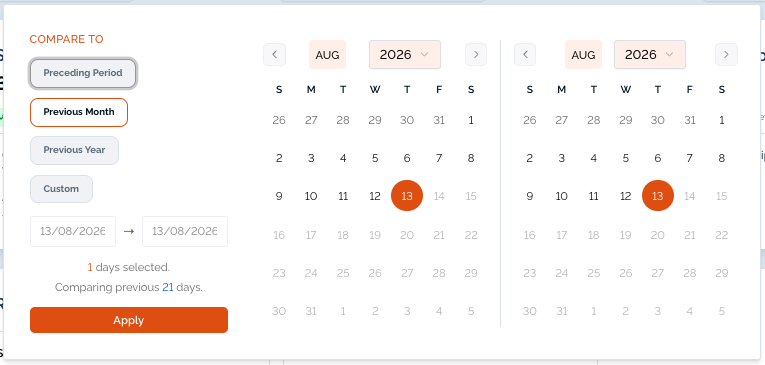
- Previous Period
- Previous Month
- Previous Year
- Custom

