

Customer management
View customer profiles in Yari Flow
The Customers area provides an overview of the customers connected to your Yari Flow store.
From here, you can:
- Search for customers
- Filter customers by subscription activity
- Review their order count and account state
- Open an individual customer profile
- Review subscriptions, orders, addresses and payment information
- Open the customer record in Shopify
- Access My Account as the customer for support purposes
Open the Customers page
To access the customer list:
1. In the left-hand menu of the Yari Flow Dashboard, select Customers.
2. Use the search bar or filters to find the customer you want to review.
3. Select the customer to open their profile.
Find and filter customers
The Customers page includes search and subscription filters.
Search
Use the search bar at the top of the Dashboard to find a customer.
Subscription date filters
Use the following date filters to narrow the customer list:
- Subscribed from
- Subscribed until
Subscribed only
Enable Subscribed only to display customers with subscription activity.
Select Clear to remove the active filters.
Understand the customer list
Each row in the customer table represents one customer.
The table includes:
- Name: The customer’s name, where available
- Email: The customer’s email address
- Orders Count: The number of orders associated with the customer
- State: The customer’s current account state, such as Enabled or Disabled
Select the copy icon beside an email address to copy it.
The Orders Count column can be sorted using the arrow beside the column heading.
Open a customer profile
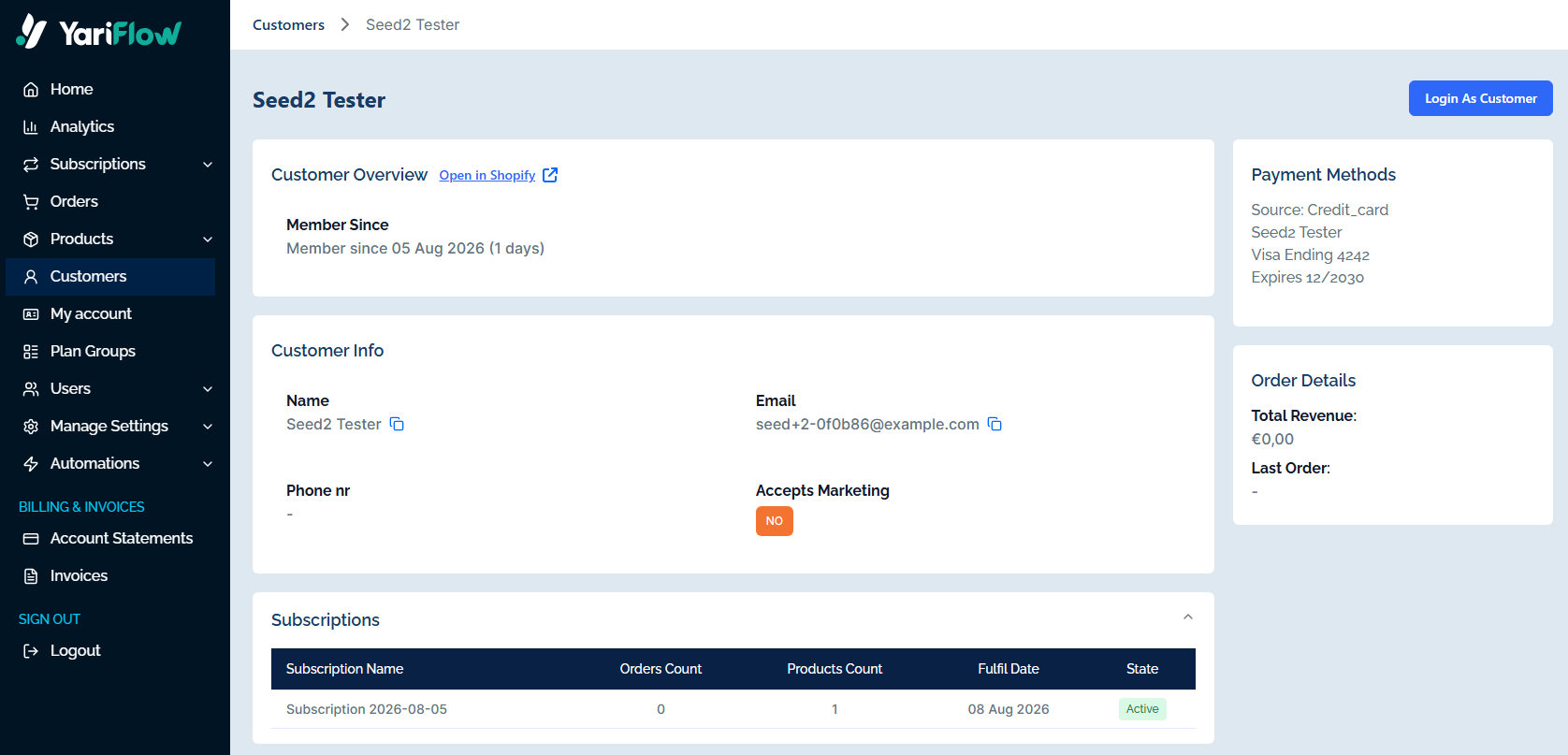
Select a customer from the list to open their profile.
The customer profile may contain:
- Customer overview
- Customer information
- Payment methods
- Order details
- Subscriptions
- Orders
- Addresses
- Timeline
Review the customer overview
The Customer Overview section shows how long the customer has been associated with the store.
It includes:
- Member Since: The date the customer joined, along with the time since that date
- Open in Shopify: A link to the customer’s Shopify record
Select Open in Shopify to review or update the customer through Shopify Admin.
Review customer information
The Customer Info section displays:
- Name
- Email address
- Phone number, where available
- Marketing consent status
The Accepts Marketing field shows whether the customer has agreed to receive marketing communications.
Copy icons are available beside the customer’s name and email address.
Core customer details should be updated through Shopify where required.
Log in as the customer
Select Login As Customer to access the customer’s My Account experience.
This can help support teams:
- Reproduce an issue reported by the customer
- Confirm which subscription actions are available
- Review how products, orders and account information are displayed
- Guide the customer through their account experience
Only use this action when required for customer support and follow your organisation’s account-access and privacy procedures.
Review order details
The Order Details card provides a summary of the customer’s order activity.
It includes:
- Total Revenue: The total revenue associated with the customer
- Last Order: The value of the customer’s most recent order
Review customer subscriptions
Expand Subscriptions to review the subscriptions associated with the customer.
The table includes:
- Subscription Name: The name of the subscription
- Orders Count: The number of orders associated with the subscription
- Products Count: The number of products included
- Fulfil Date: The next or relevant fulfilment date
- State: The subscription’s current state, such as Active
Select a subscription to open its full subscription detail page.
Review customer orders
Expand Orders to review the customer’s order history.
The table includes:
- Order Number: The Shopify order number
- Created At: The date the order was created
- Fulfil Date: The order’s fulfilment date or delivery status
- Total: The total order value
- Is Subscription: Whether the order is associated with a subscription
- State: The current order state
Select an order number to open the related order.
Review customer addresses
Expand Addresses to review the addresses associated with the customer.
Review the customer Timeline
Expand Timeline to review events recorded against the customer profile.
Timeline entries are grouped by date and may include:
- The event source
- The event name
- The time the event occurred
- Additional details when the event is expanded
Some entries may contain technical information intended mainly for investigation or support.
Frequently asked questions
Can I edit customer details in Yari Flow?
The customer profile displays contact and account information, but core customer details are managed in Shopify.
Select Open in Shopify to review or update the Shopify customer record.
What does Login As Customer do?
Login As Customer allows an authorised team member to view the My Account from the customer’s perspective.
This is useful for investigating customer account issues and confirming the experience available to that customer.

