

Create and configure Cancellation Flows
What are Cancellation Flows?
Yari Flow provides two ways to configure the experience shown when a subscriber wants to cancel:
- Cancellation Flow
- Cancellation AI Flow
Both allow you to offer relevant alternatives to cancellation, such as skipping an order, pausing, rescheduling, swapping a product or applying a discount.
However, they use different builders and handle the cancellation journey differently.
Cancellation Flow
The standard Cancellation Flow uses a form-based builder. For each cancellation reason, you can:
- Add optional customer or subscription conditions
- Configure solutions under If conditions match
- Configure fallback solutions under Otherwise
- Add one or more action buttons to each solution
Cancellation AI Flow
Cancellation AI Flow uses a visual decision tree. Within the builder, you can add and connect:
- Condition nodes
- Cancellation reason nodes
- Solution nodes
You can also configure No-match fallback solutions for cases where the AI cannot match the customer to a reason in the decision tree.
Open a Cancellation Flow
Standard Cancellation Flow
1. In the Yari Flow Dashboard, open Subscriptions > Cancellation Flow.
Cancellation AI Flow
1. In the Yari Flow Dashboard, open Subscriptions > Cancellation AI Flow.
2. Confirm that the Cancellation AI integration is enabled.
If the integration is disabled, Yari Flow displays a message asking you to enable it under Manage Settings > Integrations > Cancellation AI
Configure the standard Cancellation Flow
Create a cancellation reason
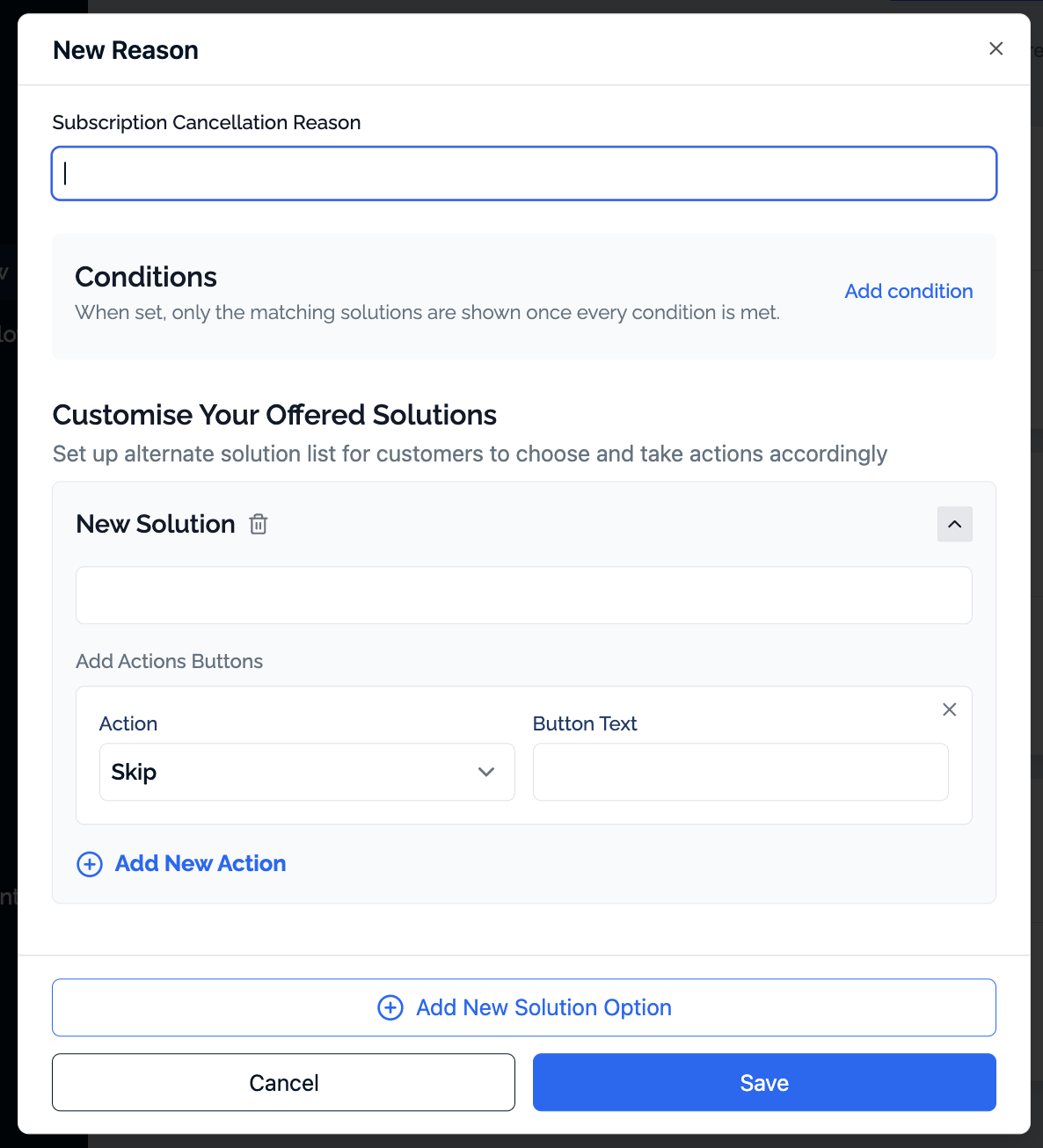
Cancellation reasons allow customers to explain why they want to cancel. To add a reason:
1. Open Cancellation Flow.
2. Select Add New Cancellation Reason.
3. Enter the reason in the Subscription Cancellation Reason field.
Use clear reasons that customers can recognise easily.
Examples include:
- It is too expensive
- I have too much product
- I no longer need it
- I want a different product
- I am having delivery issues
- I had a problem with my order
Avoid creating several reasons that mean the same thing.
Add optional conditions

Conditions allow you to show different solutions based on customer or subscription data. To add a condition:
1. Select Add condition.
2. Choose a condition type.
3. Select a comparison operator.
4. Enter the required value.
The available condition types are:
- Lifetime value
- Customer orders
- Subscription orders
The available comparison operators are:
- Is greater than
- Is at least
- Is less than
- Is at most
- Equals
When you add more than one condition, every condition must be met before Yari Flow shows the matching solutions. For example:
- Lifetime value is at least £200
- Subscription orders is at least 5
Only customers who meet both conditions will see the solutions under If conditions match.
Configure solutions when conditions match
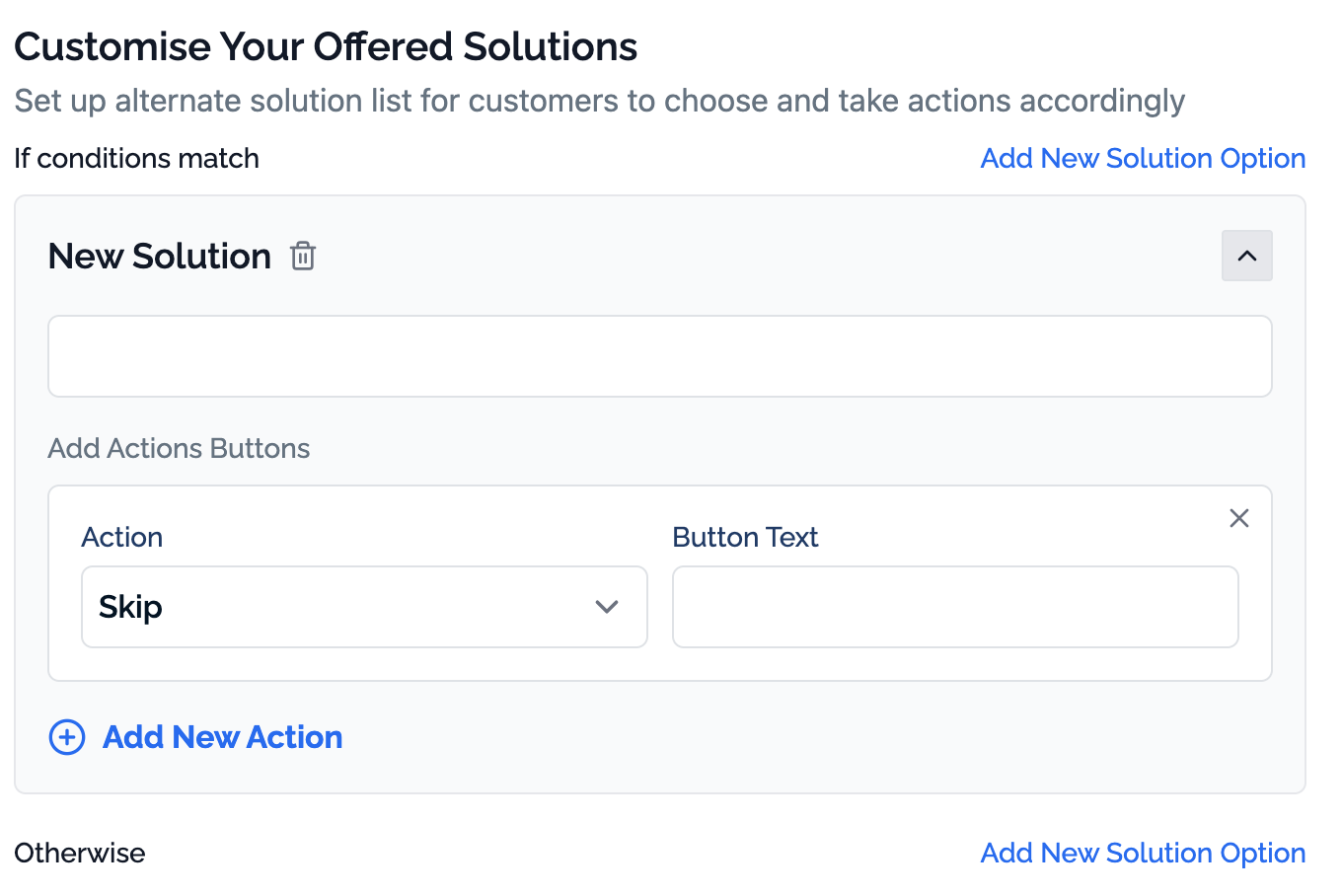
The If conditions match section controls what customers see when they meet every configured condition. To add a solution:
1. Under If conditions match, select Add New Solution Option.
2. Enter the customer-facing solution message.
3. Add one or more action buttons.
4. Enter the text customers will see on each button.
For example: Would you prefer to pause your subscription instead?
You could then add the Pause action with the button text: Pause my subscription
Configure a fallback solution

The Otherwise section controls what customers see when they do not meet the configured conditions. It only appears when at least one condition has been added. To add a fallback solution:
1. Under Otherwise, select Add New Solution Option.
2. Enter the customer-facing message.
3. Add the appropriate action buttons.
4. Enter the text customers will see on each button.
For example, customers who meet a lifetime-value condition could receive a discount, while other customers are offered a pause or delayed delivery.
Add action buttons
Action buttons determine what happens when the customer selects an option. To add an action:
1. Select Add New Action.
2. Choose an action from the menu.
3. Enter the customer-facing wording in the Button Text field.
4. Repeat these steps to add more actions where needed.
The standard Cancellation Flow includes:
- Skip
- Cancel
- Pause
- Delay
- Change Date
- Swap Product
- Support
- Link
- Discount
When several actions are added to the same solution, Yari Flow displays OR between them. This indicates that the customer can choose one of the available actions.
Keep the number of actions manageable. Too many alternatives can make the experience harder to understand.
Write clear button text
Button text should explain what will happen when the customer selects it.
Examples:
Avoid vague wording such as:
- Continue
- Accept
- Submit
- Click here
Add multiple solutions
You can select Add New Solution Option to create more than one solution under Otherwise
Each solution can contain its own message and action buttons.
Save the cancellation reason
After configuring the reason:
1. Review the conditions.
2. Review the matching and fallback solutions.
3. Confirm that each action has clear button text.
4. Make sure customers can understand how to continue with cancellation.
5. Select Save.
Repeat these steps for each cancellation reason you want to create.
Configure Cancellation AI Flow
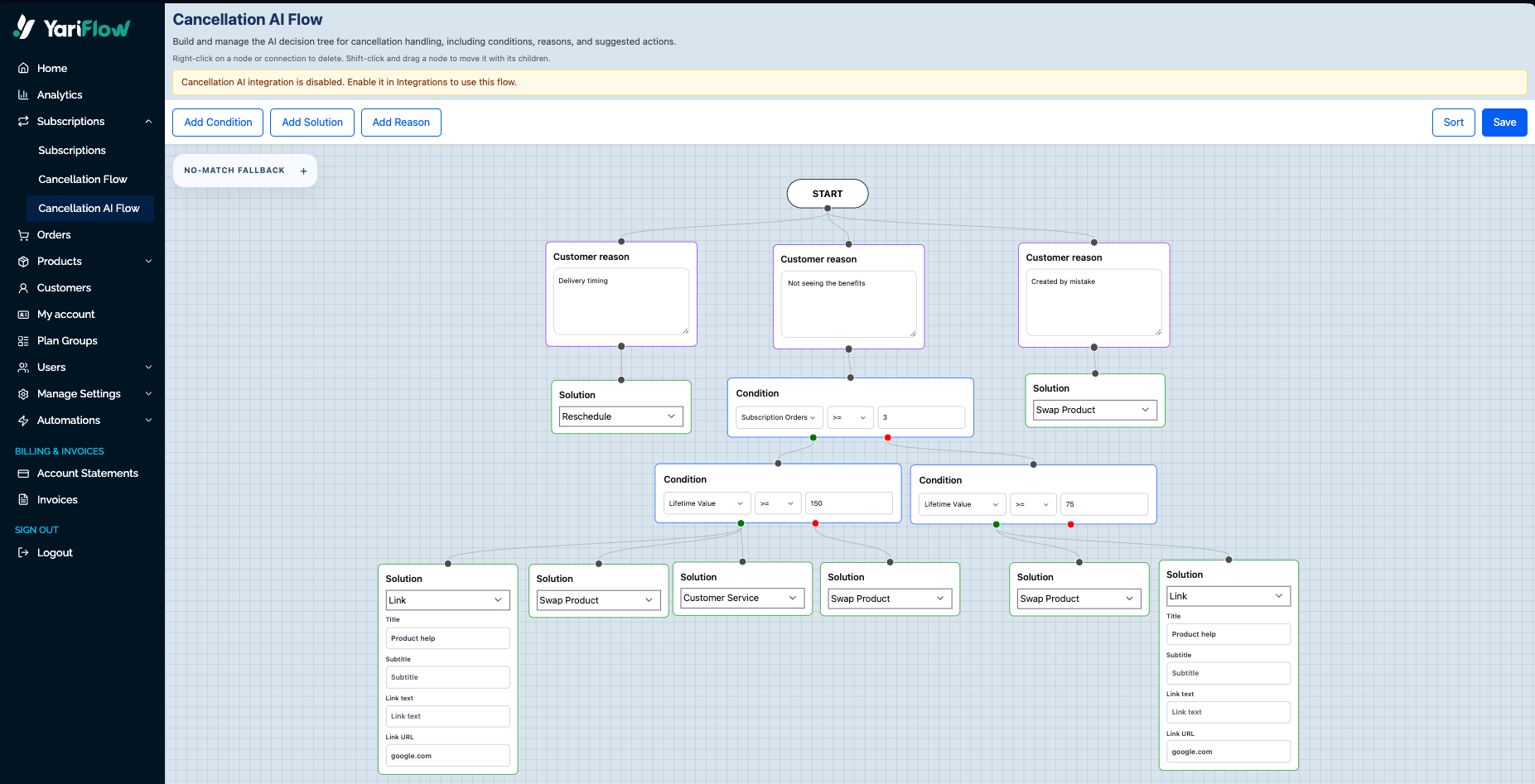
Understand the AI decision tree
Cancellation AI Flow uses a visual decision tree to determine which retention path is most relevant to a customer when they try to cancel.
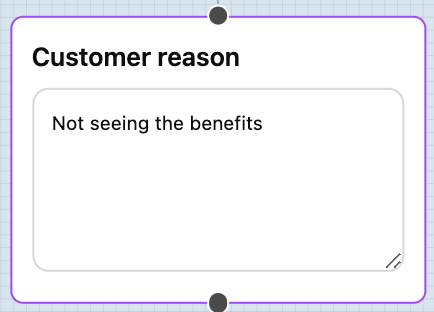
When a customer starts the cancellation process, they are asked to explain why they want to cancel. Yari Flow uses AI to interpret that input and associate it with the most relevant Reason node configured in your decision tree.
The flow begins with the Start node and can contain:
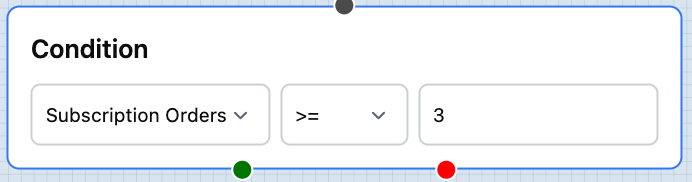
- Condition nodes: Evaluate customer or subscription information, such as subscription orders, customer orders or Lifetime Value, and create different branches based on whether the condition is met.
- Reason nodes: Define cancellation reasons that the AI can associate with the customer's explanation. For example, a customer who says “I still have too much left” may be associated with a Too much product Reason node.
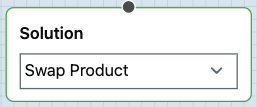
- Solution nodes: Define the actions or alternatives that can be offered once the customer reaches that part of the flow, such as skipping an order, delaying a delivery, pausing, rescheduling, swapping a product or offering a discount.
Conditions create branches within the tree and direct customers towards different reasons or solutions.
The builder also includes a No-match fallback. This is used when the AI cannot match the customer to any reason in the decision tree.
Add nodes
Use the controls at the top of the builder to add:
- Add Condition
- Add Solution
- Add Reason
Connect the nodes to define how customers move through the cancellation journey.
Reason nodes are used by the AI to interpret the customer's cancellation input and associate it with the most relevant path in the decision tree. Customers do not need to use the exact wording configured in the Reason node.
Add a condition node
Condition nodes evaluate customer or subscription information. To configure a condition:
1. Select Add Condition.
2. Choose the value Yari Flow should evaluate.
3. Select a comparison operator.
4. Enter the required value.
5. Connect each branch to the appropriate reason or solution node.
For example: Customer Orders is at least 5
The condition creates different paths depending on whether the customer meets the criteria. Connect each branch to the appropriate Reason, Condition or Solution node.
Add a reason node
Use Add Reason to add a possible cancellation reason to the decision tree.
Connect the reason to the relevant conditions and solutions so the AI can direct customers through the intended journey.
Add a solution node
Solution nodes define the actions offered to the customer. The available AI solutions include:
- Skip Order
- Cancel
- Pause
- Delay
- Reschedule
- Swap Product
- Customer Service
- Offer discount
- Link
Some solutions require additional information.
For example:
- Offer discount: Enter the discount code
- Delay: Enter the available delay-day options
- Link: Enter the destination URL
Configure No-match fallback solutions
The No-match fallback is used when the AI cannot confidently associate the customer's cancellation input with any of the Reason nodes configured in the decision tree. To configure it:
1. Find the No-match fallback panel.
2. Select Add fallback solution.
3. Choose one or more solutions.
The available fallback options include:
- Skip Order
- Cancel
- Pause
- Delay
- Reschedule
- Swap Product
- Customer Service
- Offer discount
- Link
Include a clear cancellation route in the fallback so customers can still complete their cancellation request when the AI cannot identify a suitable reason.
Organise the decision tree
You can move and organise nodes to make the flow easier to review.
Within the builder:
- Right-click a node or connection to delete it
- Shift-click and drag a node to move it together with its child nodes
- Select Sort to reorganise the tree automatically
- Select Save when the flow is complete
Best practices
Match the solution to the cancellation reason
Offer actions that directly address why the customer wants to cancel.
Examples:
- Too expensive: Discount, pause or delay
- Too much product: Skip, pause or reschedule
- Want a different product: Swap Product
- Delivery issue: Customer Service, Support or Link
- No longer needed: Pause or Cancel
Keep cancellation clear
Alternative solutions can help customers find a better option, but they should not make cancellation confusing or difficult to complete.
Include a clear cancellation route where appropriate.
Review your flows regularly
Check that:
- Cancellation reasons still reflect customer feedback
- Condition thresholds remain appropriate
- Discounts and links are current
- Products offered through Swap Product remain available
- Support details still work
- AI fallback solutions remain relevant
- Button text remains clear
Write Reason nodes around customer intent
Reason nodes should describe the underlying reason for cancellation rather than trying to predict the exact sentence a customer will enter.
For example, use: Too much product
Rather than creating several separate reasons such as:
- I have too much left
- Deliveries are too frequent
- I haven't finished my previous order
These responses may represent the same underlying customer problem.
Keep Reason nodes distinct enough that the AI can associate the customer's input with a meaningful retention path.

